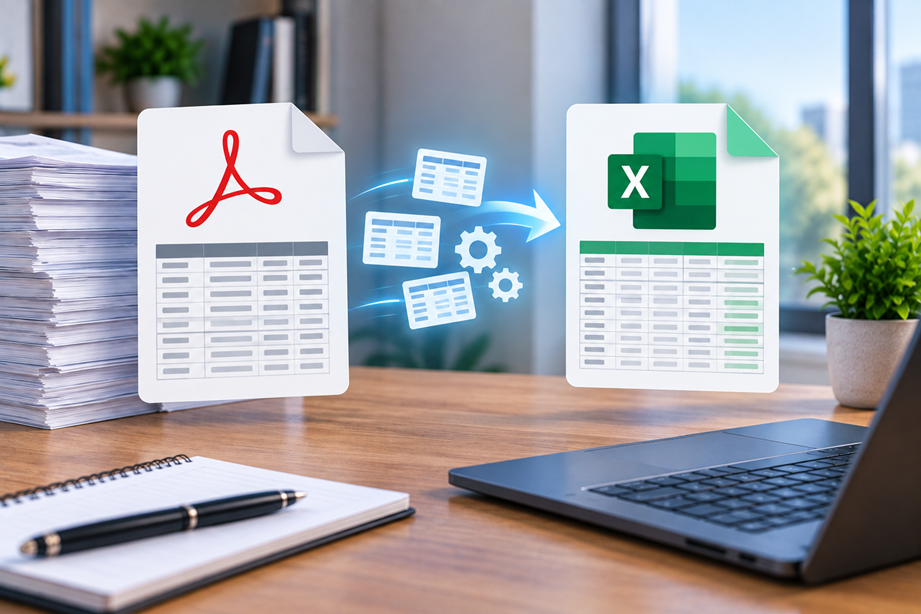
Converting PDF data to Excel is useful when you need to analyze a table, reconcile numbers, build a report or reuse information from a document. But the best method depends on what kind of PDF you have. A digitally created PDF with selectable text is very different from a scanned PDF that contains only page images.
Conversion should therefore be treated as an extraction workflow, not a simple file-format change. The final spreadsheet needs to be checked before it is used for calculations or business reporting.
Choose the method by PDF type
- Digital PDF with selectable text: try direct export or table extraction first.
- Scanned PDF: OCR is usually required.
- Small simple table: manual entry can sometimes be fastest.
- Recurring large workload: consider a repeatable extraction workflow.
Digital PDF versus scanned PDF
If you can select words with your cursor, the PDF likely contains a text layer. If you can only select the entire page image, it may be scanned.
Scanned documents need recognition before their characters and numbers can become spreadsheet data. Poor scans, skewed pages and low contrast increase the chance of errors.
Method 1: Export from a PDF editor
Many full PDF editors offer a direct PDF-to-Excel export. This is convenient when the PDF already contains structured text and tables.
The important test is not whether a spreadsheet is created, but whether rows, columns, headings and values are reconstructed in a form you can use.
Method 2: Use an online converter when appropriate
Online converters can be convenient for a one-off file. They are less appropriate when the document contains sensitive information that should not leave a controlled environment.
Review the provider's current privacy and file-handling practices before uploading contracts, financial records, identity documents or other confidential material.
Method 3: OCR for scanned tables
OCR can turn image-based text into machine-readable content. Once the text has been recognized, the conversion workflow can attempt to reconstruct the table.
Expect an additional validation step. OCR errors can affect numbers, dates and names, while table extraction can shift a value into the wrong column.
Method 4: Manual extraction for a small table
For a ten-row table, typing the information may take less time than fixing a complicated conversion. Manual work is also an option when the PDF layout is too unusual for reliable automated extraction.
Preserve rows and columns
Table extraction works best when the original has clear rows and columns. Merged cells, multi-line entries and nested tables can make the output harder to interpret.
Clean headers and merged cells
After conversion, inspect the header row first. Repeated page headers can become data rows, while merged cells can create blanks or shifted values.
Check numbers, dates and currency
Business data needs more than visual similarity. Check decimal separators, negative numbers, currency symbols, dates and totals.
A number stored as text can look correct while behaving incorrectly in a calculation.
Compare totals against the PDF
Choose one or more totals from the source document and calculate the same totals in Excel. If they do not match, stop and investigate before using the workbook downstream.
Multi-page tables and repeated headers
Statements and reports often repeat column headings on every page. The converter may preserve those lines as separate rows. Filter and clean these carefully rather than deleting anything automatically.
Privacy considerations
PDFs can contain sensitive customer, financial or employee data. Use an online service only when its current handling practices are suitable for the document and your organization's requirements.
When automated conversion is not reliable
If the PDF contains handwriting, complex nested tables, severe scan defects or unusual layouts, automated extraction may require extensive cleanup. At that point, compare the cost of manual extraction with the cost of building a better repeatable process.
Validate the final workbook
- Compare sheet and row counts.
- Check key totals.
- Spot-check values across the document.
- Review dates and currency formats.
- Inspect tables and merged cells.
- Confirm that important values are numeric where expected.
When a comparison or conversion tool is useful
If PDF-to-Excel is a recurring task, a dedicated conversion workflow can save time. Tervilo's existing PDF-to-Excel comparison can help when the reader has reached the point of choosing software, while the Tervilo tools can handle individual file operations where appropriate.
Keep the source PDF
The exported spreadsheet should normally be treated as a working derivative. Keep the original PDF when it is an important business record or when you may need to verify the extracted values later.
Use a representative sample
Before adopting a conversion workflow, test files that resemble the real workload: one clean report, one multi-page table and one scanned document when scans are common. Compare the output against the source before trusting the process at scale.
Separate convenience from accuracy
A converter that creates a workbook in seconds is only useful when the result is accurate enough for the next task. A slightly slower process with reliable validation can be better than a fast export that needs extensive manual correction.
Clean the workbook after extraction
After conversion, remove obvious repeated headers and unnecessary blank rows only after confirming they are not meaningful data. Then standardize formats so dates, numbers and currency values behave consistently.
Keep a simple validation record
For recurring business conversions, note which source file was processed, when it was converted and which checks were completed. That creates a lightweight audit trail without requiring a complicated system.
Decide when a conversion needs human review
Human review is especially important when the source contains totals, financial figures, legal terms, or multi-line tables. The more consequential the downstream use, the stronger the validation step should be.
Keep the conversion workflow documented
If a team processes similar files repeatedly, record the chosen method and the validation checks. This makes the process easier to hand over and reduces the chance that a new employee starts with a different extraction method.
Check the final workbook visually and numerically
Open several converted pages or sheets and compare both the appearance and the values. Confirm that the workbook is usable for its intended purpose before sharing it. A conversion is finished only when the result passes that final check.
Final recommendation
Start by identifying whether the PDF contains real text or only a scan. Use direct export for clean digital tables, OCR when recognition is required, and manual entry when the dataset is small or unusually structured. Whatever method you choose, validate totals and representative values before using the Excel file for decisions or calculations.
FAQ
Can I convert a scanned PDF to Excel?
Yes, but OCR is normally needed before the software can reconstruct the table. Scan quality strongly affects the result.
What is the easiest PDF-to-Excel method?
For a clean digital PDF, direct export from a capable PDF editor can be straightforward. The best method changes when the PDF is scanned or highly complex.
Why are numbers wrong after conversion?
OCR and table extraction can misread digits, place values in the wrong column, or change number formatting. Always validate totals and samples.
Should confidential PDFs be converted online?
Only after checking the provider's current privacy and file-handling terms and confirming that online processing is appropriate.
Sources checked
PDF and Excel export capabilities can change by product and plan. Verify current provider documentation before relying on a particular workflow.