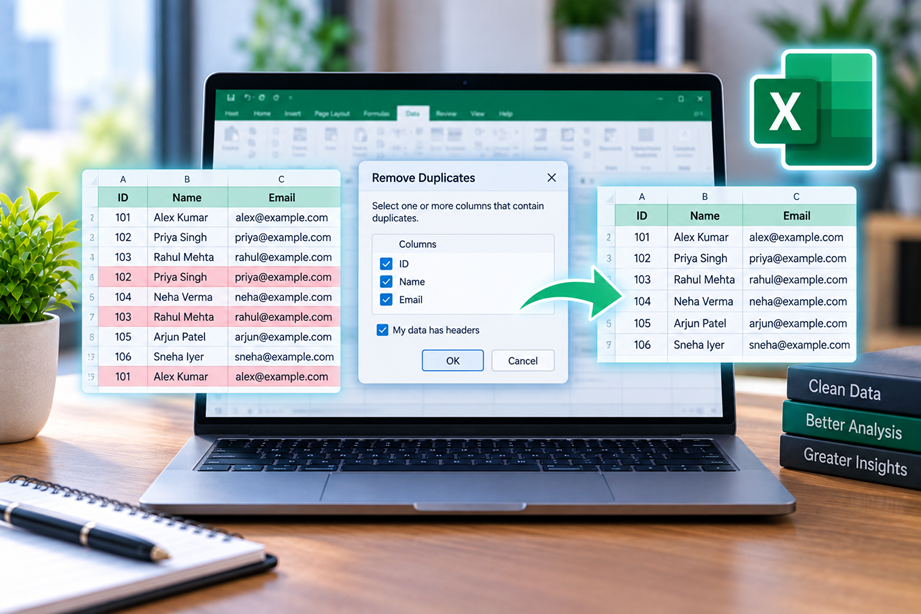
Removing duplicates in Excel is easy. Removing the right duplicates is the harder part.
Excel's Remove Duplicates command permanently deletes duplicate records from the selected range. Before using it on important data, make a copy or use a reversible review method first. This guide shows how to identify what Excel considers a duplicate, check the result, and then remove duplicates only when the rule is clear.
What Excel considers a duplicate
Excel compares the columns you select in the Remove Duplicates dialog. If the selected values in one row match the selected values in another row, Excel treats the records as duplicates for that operation.
That means a row can be a duplicate for one purpose but not another. Two orders may share the same customer and product but have different dates or invoice numbers. Removing them merely because two columns match could destroy valid transactions.
Step 1: make a backup
Before permanently deleting records, copy the original data to another worksheet or workbook. This is especially important for imported sales, customer, payroll or transaction data.
Step 2: review duplicates first
A safer first step is to highlight duplicate values using conditional formatting:
- Select the cells or column you want to inspect.
- Open Home > Conditional Formatting > Highlight Cells Rules > Duplicate Values.
- Review the highlighted records.
- Decide whether the repeated value actually represents a duplicate record.
This review step is useful because a repeated customer name, product code or date is not automatically a duplicate row.
Step 3: use Remove Duplicates
- Select the table or range containing the records.
- Choose Data > Remove Duplicates.
- Check the columns that define a duplicate for your task.
- Leave columns unchecked if differences in those columns should make two records distinct.
- Select OK and review the number of records removed.
For example, if an invoice ID uniquely identifies a transaction, selecting Invoice ID may be more appropriate than selecting only Customer and Amount.
Whole-row duplicates vs duplicate values
These are different problems.
| Problem | Typical question |
|---|---|
| Duplicate value | Which customer names appear more than once? |
| Duplicate record | Which rows represent the same transaction? |
If you are cleaning a database-like table, define the fields that make a record unique before deleting anything.
Example: duplicate customer list
| Customer ID | Name | |
|---|---|---|
| C101 | Aria Lee | aria@example.com |
| C102 | Ben Cole | ben@example.com |
| C101 | Aria Lee | aria@example.com |
Here the repeated Customer ID, name and email point to the same customer record. Selecting all three columns for the duplicate check would remove the repeated row while keeping the distinct customer.
What if only one column is duplicated?
Suppose two rows have the same email address but different names. Do not automatically delete one. First determine whether the email is supposed to be unique in your dataset. If the answer is yes, investigate which record is correct before removing anything.
Use filtering when you do not want to delete data
If the goal is simply to see unique values, filtering can be safer than deleting. A unique-value filter changes what is displayed without permanently removing the source rows.
This is useful when you need to inspect a dataset, create a temporary report or confirm the duplicate rule before making a destructive change.
Common duplicate-cleaning mistakes
- Deleting without a backup: Remove Duplicates is destructive for the selected data.
- Selecting the wrong columns: Excel can remove rows that are different in fields you did not include in the comparison.
- Confusing repeated values with duplicate records: A repeated product or customer can be legitimate.
- Ignoring hidden spaces: Imported text can contain leading or trailing spaces that affect comparisons.
- Mixing identifiers and descriptions: Use the field that actually defines uniqueness when possible.
After removing duplicates
Do not stop at the removal count. Check totals, row counts, key identifiers and any formulas or PivotTables that depend on the cleaned data. If the dataset feeds another report, verify that the downstream numbers still make sense.
When not to remove duplicates
Do not remove duplicates simply because a column contains repeated values. Repetition is normal in transaction data. For example, the same customer can legitimately appear on many invoices.
Practical checklist
- Define what makes a record unique.
- Make a backup before permanent deletion.
- Review suspected duplicates first.
- Select only the columns that define duplication.
- Check the removal summary.
- Validate important totals and identifiers afterward.
Related Excel guides
If your goal is to count repeated values rather than delete them, see COUNTIF and COUNTIFS in Excel. For data-cleaning workflows, browse the Excel Guides collection.
Quick answer
Back up the data, review duplicates, define which columns make a record unique, then use Data > Remove Duplicates. If you only need to inspect unique values, use filtering or highlighting instead of deleting the source rows.