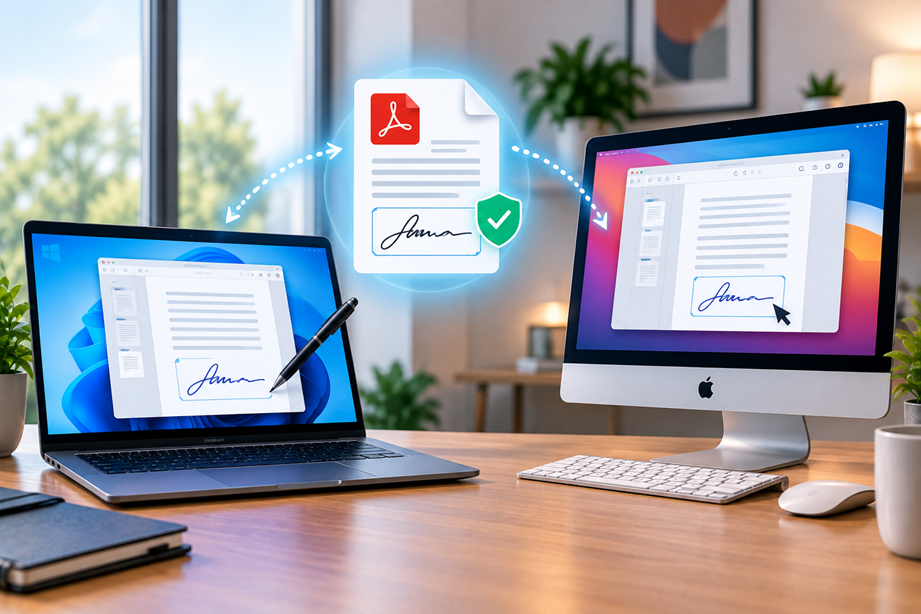
You do not always need to print a PDF, sign it with a pen, scan it again and email it back. Windows and Mac users have several digital options for adding a signature, completing a form, or sending a document through a managed e-signature workflow.
The best method depends on what you are doing. Adding your own signature to a form is different from sending a contract to several people and needing a record of who signed and when.
First decide what kind of signing you need
There are two common situations. You may already have a PDF and need to add your own signature. Or you may need another person to sign a document and want invitations, reminders, signing order and completion records.
A local PDF tool can be enough for the first situation. A dedicated e-signature service is usually more appropriate for the second.
Sign a PDF on Mac with Preview
Apple's current Preview guide includes tools for filling and signing PDF forms. You can create a signature with a trackpad, a camera or an iPhone or iPad, then place it on the PDF. Preview also supports other PDF markup functions. citeturn332937search17turn332937search0
A simple workflow is:
- Open the PDF in Preview.
- Show the Markup toolbar.
- Choose the Sign tool.
- Create or select your signature.
- Place it in the intended location.
- Save a final copy and review it.
Sign a PDF on Windows
Windows does not provide one universal PDF-signing workflow for every version and use case. Many users rely on a PDF editor, browser-based PDF service or dedicated e-signature platform.
If you already use a PDF editor, check its current fill-and-sign feature. For occasional forms, a lightweight browser workflow may be sufficient.
When Adobe Acrobat is useful
Adobe Acrobat supports filling and signing forms alongside broader PDF editing, conversion and sharing capabilities. That makes it useful when signing is only one part of a larger document process.
For example, you may need to correct a document, convert it, add a signature and then send it to another person. A single workflow can reduce the number of separate applications involved.
A visual signature is not the same as a signing transaction
A signature image placed on a PDF is a file-editing action. A managed e-signature transaction can also involve recipient identity checks, invitations, audit information and a controlled completion process.
Choose the simpler method when it meets the purpose. Do not buy a full transaction platform just to place your signature on an occasional personal form.
Prepare the PDF before signing
Check that you have the correct document version. Confirm that all required fields are present and that names, dates, amounts and other details are correct.
If the document needs text changes, page reordering, compression or conversion, complete those steps before final signing where practical. This reduces version confusion.
Place the signature correctly
Use the designated signature field when one exists. If there is no field, follow the document instructions rather than covering important text.
Check whether the document also requires initials, dates, checkboxes or other information. A visible signature does not mean every required field has been completed.
Save and verify the signed copy
Give the final document a clear filename and keep it in the correct location. Avoid creating a chain of files such as final, final2 and final-new unless your workflow genuinely needs separate versions.
Reopen the saved PDF and verify the signature, fields, page count and any important links before sending it.
When another person needs to sign
If a client, contractor or colleague needs to sign, a signing platform can be easier than emailing a static attachment back and forth. You can often specify recipients, signing order and reminders, then receive a completed document and transaction record.
Signing order matters for multi-person documents
Some contracts require a client to sign before a service provider countersigns. Others can be signed in any order. Check that the workflow you choose supports the sequence you actually need.
Test the signer experience
Before sending a large batch of documents, send yourself a test. Open it as the recipient, complete the signature, and check whether the instructions are obvious.
Test on a phone as well as a computer when clients may sign from mobile devices.
Privacy and sensitive documents
Contracts and forms can contain personal, financial or confidential business information. Before uploading a document to an online service, review its current privacy and security information.
Use the minimum information and access necessary for the transaction.
Windows and Mac workflows are not identical
The basic idea is the same—prepare, sign, save and verify—but the built-in tools differ. Mac users can use Preview for many everyday signing tasks, while Windows users may use a PDF application or a web-based workflow.
Check the exact features on the operating system and software version you use rather than relying on a generic “Windows and Mac” feature list.
Common mistakes
- Signing the wrong version.
- Leaving required fields empty.
- Covering important text with the signature.
- Overwriting the only copy.
- Assuming a visual signature provides a full audit trail.
- Uploading sensitive documents without checking the service's handling practices.
When Tervilo can help before signing
The signature is often the final step. You may need to convert or compress a document first. Focused Tervilo PDF tools can handle those file-processing jobs before the document enters the signing workflow.
Final recommendation
Use the simplest method that meets the actual requirement. For a basic form on Mac, Preview may be enough. On Windows, a PDF editor or browser tool can handle occasional signing. When multiple people need to sign and you need tracking, reminders or a transaction record, use a dedicated e-signature workflow.
Choose a simple signing process for routine documents
If you sign the same type of document regularly, create a repeatable routine: confirm the version, fill the required fields, sign, save the final copy, and store it in the correct location. Consistency reduces mistakes more effectively than adding unnecessary software features.
Know when a managed workflow is worth it
A dedicated e-signature service becomes more useful when you are sending documents to clients, need several signatures, need reminders, or need a reliable transaction record. The value comes from managing the process around the signature rather than simply drawing a signature on the page.
Keep signed and unsigned files clearly separated
For business work, make it obvious which document is a draft and which is the completed record. A simple folder structure or status convention can prevent someone from accidentally sending an unsigned copy after the signed version has already been completed.
Keep the final version easy to identify
A signature workflow can create several files: blank template, completed draft, signed copy and countersigned copy. Use a naming or folder convention that makes the completed record obvious.
Do not change the signed content casually
If someone asks for a wording change after signing, create a revised document and run the appropriate signing process again. Avoid making silent edits to a file that is supposed to represent an agreed version.
When a simple signature is enough
For low-risk internal approvals or ordinary forms, adding a signature in a PDF application may be perfectly practical. For important agreements, use a process that matches the legal and business requirements rather than assuming one method fits every document.
Before sending an important document, do one final review of the signer names, signature fields, dates and any attachments. A two-minute check can prevent the much larger problem of having to restart the entire signing process.
Keep instructions simple
The signer should understand what action is expected without reading a long technical explanation. Tell them which document they are signing, where to complete it and whom to contact if something looks wrong.
FAQ
Can I sign a PDF for free?
Often, yes. Mac users can use Preview, and other platforms provide free or limited signing tools. Check the current limits of the software you use.
Should I compress a PDF before signing it?
Usually prepare the final document first, then sign it. If a signed PDF must later be compressed, verify the workflow requirements and recheck the output.
Can several people sign the same PDF?
Yes. A dedicated e-signature platform is generally easier for multiple signers because it can manage recipients and signing order.
Is an electronic signature legally valid?
Electronic signatures are recognized in many jurisdictions, but requirements vary by country, document type and transaction. For important legal matters, check the applicable rules.
Sources checked
Platform features and signing workflows can change. Verify current instructions for the operating system and application you use.