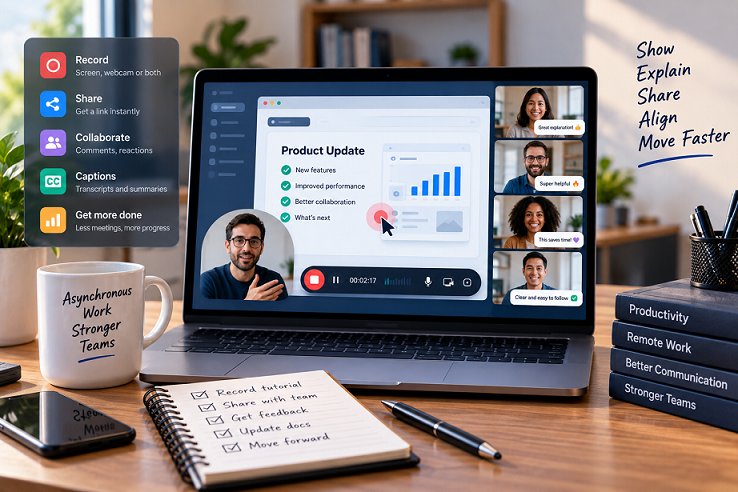
Best Screen Recording Software for Remote Teams
Remote work has created a simple communication problem: not every question needs a meeting, and not every explanation belongs in a long message.
Sometimes the fastest way to explain something is to show it.
A two-minute screen recording can demonstrate a software bug, walk a colleague through a spreadsheet, explain a design change, introduce a new process, provide a project update or train a new employee without asking everyone to be online at the same time.
That is why screen recording software has become increasingly useful for remote teams. The important part is no longer just recording the screen. A useful team solution also needs to make the recording easy to share, easy to understand and easy to find later.
This guide compares six screen recording tools with remote and distributed teams in mind. The comparison focuses on recording quality, asynchronous communication, sharing, editing, captions and transcription, collaboration, team administration, pricing and the overall workflow after the recording is made.
Research note: Features and pricing can change. The information below was checked against current provider information in September 2026.
Quick Comparison
| Software | Best for | Free option | Team collaboration | Transcription / captions | Main strength |
|---|---|---|---|---|---|
| Loom | Fast asynchronous team communication | Yes | Yes | Yes | Fast recording and sharing |
| Jumpshare | Remote-team visual communication | Yes | Yes | Yes | Recording, sharing and visual tools |
| Zight | Visual communication and documentation | Yes | Yes | Yes | AI, screenshots and recordings |
| Tella | Polished asynchronous videos | Yes | Yes | Yes | Easy editing and professional output |
| Descript | Editing and transcription | Yes | Yes | Yes | Text-based video editing |
| ScreenPal | Affordable team recording and training | Yes | Yes | Yes | Team recording and training |
Features and plan availability can vary by product, plan, region and billing arrangement. Check the provider's current information before purchasing.
1. Loom — Best for Fast Asynchronous Team Communication
Loom is one of the clearest examples of a screen recorder becoming a communication tool rather than simply a recording application.
Its team workflow is straightforward: record your screen, camera or both, finish the recording, and share a link.
That matters for remote teams because the recipient does not need to find a mutually convenient time for a live call.
Loom's team features include comments, emoji reactions, access controls, calls to action, video stitching and engagement insights. Loom also specifically promotes asynchronous team alignment, feedback, training and updates.
What Loom does well
- Screen and webcam recording
- System audio
- Automatic transcription and captions
- Browser-based sharing
- Comments and reactions
- Team libraries
- Viewer insights
- Access controls
- Video trimming and basic editing
- High-definition recording on supported plans
Pricing
Loom currently lists:
- Starter: Free
- Business: $18/user/month
- Business + AI: $24/user/month
The Starter plan includes up to 25 videos and five-minute screen recordings. Business removes those recording limits and adds unlimited videos, unlimited recording time and higher-quality recording. Business + AI adds additional AI-powered editing and meeting-related features.
Best fit
Loom is particularly suitable for teams that want to replace some:
- Status meetings
- Internal explanations
- Feedback messages
- Onboarding calls
- Repetitive demonstrations
with short videos.
The trade-off
If your team needs advanced video editing rather than fast communication, Loom may not be the most appropriate type of tool.
Its strength is speed from idea to recording to shareable link.
2. Jumpshare — Best for Remote-Team Visual Communication
Jumpshare is particularly interesting for remote teams because its product positioning goes beyond screen recording.
It combines screen recording with screenshots, GIFs, annotations and file sharing, making it useful for teams that communicate visually throughout the workday.
Its remote-work workflow can be used for asynchronous updates, training, onboarding, project updates, feedback and knowledge sharing across time zones.
What Jumpshare does well
- Screen recording
- Webcam recording
- Audio recording
- High-resolution recording on supported plans
- Automatic cloud upload
- Shareable links
- Video markups
- Screenshots
- GIF capture
- Captions and transcription
- Analytics
- Team libraries
- Password protection
- Custom branding
- AI-generated titles, summaries and chapters on supported plans
Pricing
Jumpshare currently lists:
- Basic: Free
- Plus: $12/user/month
- Business: $16/user/month
- Enterprise: Custom pricing
The Plus plan adds unlimited uploads and recording time, captions and transcriptions, editing, advanced sharing and analytics. Business adds AI features and additional team capabilities.
Why it works for remote teams
A remote team often needs more than a video file.
It needs a way to:
record → share → review → find later
Jumpshare is designed around that broader visual-communication workflow.
Best fit
Teams that want a combination of screen recording, visual communication, file sharing and collaboration.
3. Zight — Best for Visual Communication and AI Documentation
Zight takes the idea of screen recording and expands it into a broader visual communication platform.
Alongside screen recordings, it supports screenshots, GIFs and video requests. Its AI features can also turn recordings into reusable documentation.
That makes it particularly interesting for teams that use recordings for more than simple messages.
What Zight does well
- Screen recording
- Screenshots
- GIFs
- Video requests
- AI summaries
- AI-powered documentation
- Step-by-step guides
- Team collaboration
- Sharing links
- Custom branding
- Analytics
- Redaction
- Security controls
Pricing
Zight currently lists:
- Share: Free
- Create: $9.95/user/month when billed annually
- Collaborate: $12/user/month when billed annually
- Scale: Custom pricing
The Collaborate plan is designed for teams and adds features such as unlimited AI and Smart Actions, video requests, custom branding and team-oriented controls. Zight also lists GDPR and SOC 2 Type II compliance on Collaborate.
Best fit
Zight makes particular sense when a remote team wants screen recording to become part of a larger visual documentation and communication system.
4. Tella — Best for Polished Asynchronous Videos
Tella focuses on making screen recordings look more polished without requiring traditional video-editing expertise.
That makes it useful for remote teams creating:
- Product demos
- Internal updates
- Project explanations
- Customer walkthroughs
- Training videos
- Product-team communication
Tella supports screen and webcam recording, editing, sharing and team collaboration, making it suitable for asynchronous communication where presentation quality matters.
What Tella does well
- Screen recording
- Webcam recording
- Clip-based editing
- Custom layouts
- 4K export on supported plans
- Team collaboration
- Analytics
- Shared playlists
- Slack integration
- Notion integration
- Linear integration
- Chrome extension
- Windows and macOS recording
Pricing
Tella currently lists:
- Free: Available
- Pro: $13/user/month
- Premium: $19/user/month
- Enterprise: Custom pricing
The paid plans add capabilities such as unlimited videos, 4K export, team collaboration and analytics. Premium adds features such as custom domains, domain restrictions, branding controls and advanced analytics.
Best fit
Tella is particularly suitable when the team wants professional-looking asynchronous videos without turning every recording into a full video-production project.
5. Descript — Best for Editing and Transcription
Descript is different from the lighter screen-recording tools in this comparison.
Its major advantage is that video can be edited through a transcript-like interface. That makes it attractive when recordings need substantial editing after capture.
Descript's team offering includes video messaging for asynchronous collaboration, transcription, translation, AI editing and shared projects. It is therefore better suited to teams where recordings often become finished content rather than simply quick internal messages.
What Descript does well
- Screen recording
- Camera recording
- Audio recording
- Transcription
- Text-based video editing
- AI-powered editing
- Translation
- Team collaboration
- Shared projects
- Video messaging
- High-resolution recording
- Cloud storage
Pricing
Current Descript pricing includes:
- Free: $0
- Hobbyist: $16/person/month on annual billing
- Creator: $24/person/month on annual billing
- Business: $50/person/month on annual billing
- Enterprise: Custom pricing
Descript's Business plan is designed for team collaboration and provides substantially higher media and AI limits.
The trade-off
Descript can be more than a remote team needs if all they want is:
“Record my screen and send the link.”
Its value increases when recordings need to become edited training videos, tutorials, demos, documentation or customer-facing content.
Best fit
Teams that want screen recording plus serious editing and transcription.
6. ScreenPal — Best for Affordable Team Recording and Training
ScreenPal takes a different approach: it combines screen recording and video editing with a team-oriented workplace offering.
Its Team Business plan is designed around distributed teams and workplace communication, with recording, editing, interactive video and team-management capabilities.
What ScreenPal offers
- Unlimited recording
- Video editing
- Automated captions
- Stock assets
- Custom video player
- Branding
- Interactive videos
- Quizzes and polls
- Video analytics
- Heatmaps
- Team management
- Collaboration
- SAML SSO
- Cross-device access
Pricing
ScreenPal's Team Business plan is currently listed at $8/user/month when paid annually, with a minimum of three users. Enterprise pricing is custom.
Best fit
ScreenPal is worth considering for teams that want recording, editing, training and interactive video features without immediately moving to a more expensive enterprise platform.
Which Screen Recorder Fits Your Remote Team?
The easiest way to choose is to start with how your team communicates.
| Your situation | What to look at |
|---|---|
| Short asynchronous updates | Loom |
| Frequent visual explanations | Jumpshare |
| Screenshots + videos + AI documentation | Zight |
| Polished internal videos | Tella |
| Heavy editing and transcription | Descript |
| Training and interactive videos | ScreenPal |
This is not a ranking. The appropriate choice depends heavily on how your team uses recordings.
A team that records three-minute Slack updates has a completely different requirement from a training department producing 30-minute onboarding courses.
What Makes a Good Screen Recorder for Remote Teams?
1. Fast Recording
The software should get out of the way.
If recording a two-minute explanation takes ten minutes to configure, people will simply schedule another meeting.
2. Easy Sharing
A link is usually more useful for remote teams than downloading a large video file and uploading it somewhere else.
3. Webcam Support
Some explanations benefit from seeing the person speaking. Others don't.
The best tools let you choose between:
- Screen only
- Camera only
- Screen + camera
4. Audio Quality
A beautiful screen recording with poor audio is still a poor explanation.
Look for:
- Microphone recording
- System audio
- Noise reduction
- Audio controls
5. Captions and Transcription
Captions make recordings easier to follow and search.
They are also useful when teammates work in different environments or prefer reading rather than listening.
6. Comments and Feedback
A remote team should ideally be able to discuss the recording without creating another meeting.
Timestamped comments are particularly useful because feedback can point to the exact moment being discussed.
7. Search and Organization
This becomes increasingly important as the number of recordings grows.
A team might start with ten videos and eventually have hundreds.
Without folders, libraries, search or useful metadata, the recordings become another information silo.
8. Access Controls
Business recordings can contain:
- Customer information
- Product details
- Internal processes
- Financial information
- Employee information
Teams should therefore check sharing permissions, password protection, workspace controls and administrative features before adopting a platform.
Why Screen Recording Works So Well for Remote Teams
Consider a typical question:
“Can you show me how you got this result?”
A text response might take several paragraphs.
A meeting could take 30 minutes to schedule.
A screen recording could take two minutes.
The recipient can watch it when convenient, pause it, replay it and return to it later.
That is the real value of screen recording for distributed teams.
It isn't simply video.
It is asynchronous context.
Screen Recording vs. Another Meeting
Screen recording doesn't eliminate meetings.
Some conversations genuinely need real-time discussion.
But a recorded explanation works particularly well when:
- The information is mostly one-directional
- The process needs to be demonstrated
- The recipient is in another time zone
- The same explanation will be needed again
- A visual example is easier than written instructions
- The issue is too detailed for a chat message
For example, a developer can record a bug instead of writing ten paragraphs describing it.
A manager can record a weekly update instead of scheduling another status call.
A designer can walk through a mockup while explaining the reasoning.
A trainer can record a process once and reuse it for future employees.
Do Remote Teams Need a Paid Screen Recorder?
Not always.
A free plan can be enough for:
- Occasional explanations
- Short internal messages
- Simple demonstrations
- Small teams experimenting with asynchronous communication
Paid plans become more useful when the organization needs:
- Unlimited recording
- Longer videos
- Team libraries
- Analytics
- Advanced editing
- Transcription
- Branding
- Access controls
- SSO
- Administrative controls
- Larger storage or bandwidth
For example, Loom's free Starter plan limits recordings to 25 videos of up to five minutes, while Business removes those recording limits.
Jumpshare's free Basic plan similarly limits recordings to five minutes, while paid plans add unlimited recording and more collaboration capabilities.
How Much Does Screen Recording Software Cost?
The current products in this comparison span a fairly wide range.
Free
Several providers offer free entry-level plans, including Loom, Jumpshare, Zight, Tella and Descript.
Around $8–$13 per user/month
ScreenPal's Team Business plan currently starts at $8/user/month annually, Tella Pro at $13/user/month, and Jumpshare Plus and Zight Collaborate at $12/user/month under their listed annual pricing.
Higher-priced collaboration and AI plans
Loom currently lists Business at $18/user/month and Business + AI at $24/user/month. Descript's Business plan is currently listed at $50/person/month on annual billing.
The cheapest plan isn't automatically the cheapest solution.
Consider:
users × subscription + storage/bandwidth + editing requirements + administrative features
before making the comparison.
What About Screen Recording Security?
Remote teams should not treat security as an afterthought.
Before rolling out a screen recorder across a company, check:
- Where recordings are stored
- Who can access shared videos
- Whether links can be protected
- Whether SSO is available
- Whether administrators can manage users
- Data-retention controls
- Compliance certifications
- Whether sensitive information can be redacted
Zight, for example, currently lists SOC 2 Type II and GDPR compliance on its Collaborate plan, with additional enterprise controls available on higher plans.
ScreenPal's Team Business offering includes SAML SSO and team management, while the provider also publishes information about its privacy and security practices.
The specific requirements will depend on the company's industry and the information being recorded.
How to Choose the Right Screen Recording Software
1. How long are your typical recordings?
If most recordings are under five minutes, a free plan may be sufficient.
2. Do you need the webcam?
For personal updates and feedback, often yes.
For software demonstrations, sometimes screen-only recording is better.
3. Do teammates need to comment?
If asynchronous collaboration is the main reason for buying the software, this should be a major consideration.
4. Do you need transcripts?
If recordings will become documentation or training material, transcription becomes much more valuable.
5. Will customers see the videos?
Customer-facing recordings may require:
- Branding
- Custom domains
- Polished editing
- Analytics
- Access controls
6. Will recordings contain sensitive information?
If yes, examine security and administrative controls before choosing a platform.
7. How much editing do you need?
If the answer is “almost none,” tools such as Loom or Jumpshare may be enough.
If the answer is “we need to produce finished training videos,” Descript or ScreenPal may be more relevant.
8. How many people need seats?
Some products have minimum team sizes or different pricing structures.
ScreenPal's Team Business plan, for example, starts at three users.
Frequently Asked Questions
What is the best screen recording software for remote teams?
The right choice depends on how the team uses recordings. Loom is designed strongly around asynchronous communication, Jumpshare around visual communication and sharing, Zight around visual documentation, Tella around polished async video, Descript around editing and transcription, and ScreenPal around recording, editing and training.
What is the best free screen recorder for remote work?
Several products offer free plans, including Loom, Jumpshare, Zight, Tella and Descript. The important difference is not simply whether a free plan exists, but its recording length, storage, editing and collaboration limits.
Is Loom good for remote teams?
Yes. Loom supports asynchronous team communication through screen and webcam recordings, comments, reactions, sharing controls and engagement insights.
Can screen recording replace meetings?
It can replace some meetings, particularly one-way updates, demonstrations, walkthroughs and explanations. It is not a replacement for discussions that require real-time collaboration or decision-making.
What should remote teams look for in a screen recorder?
The most important factors are recording quality, microphone and system audio, webcam support, easy sharing, captions or transcription, comments, organization, access controls, team administration and pricing.
Is screen recording useful for employee training?
Yes. Recorded walkthroughs can be reused for onboarding, software training and process documentation, which can reduce the need to repeat the same explanation for every new employee.
Can screen recordings be used for customer support?
Yes. Short recordings can demonstrate a solution much more clearly than a long written explanation. Some platforms also provide video-request workflows so customers can record their own screens.
Do remote teams need paid screen recording software?
Not necessarily. Small teams with occasional recordings may be fine with a free plan. Paid software becomes more useful when recordings become a regular part of communication and the team needs longer recordings, centralized libraries, analytics, transcription, editing or administrative controls.
Final Takeaway
The best screen recording software for a remote team is not necessarily the one with the most recording features.
The real question is:
What happens after you press Stop?
If the recording immediately becomes a useful link that a teammate can watch, comment on and find later, it has solved a communication problem.
If the team needs polished videos, training material or extensive editing, a more capable video platform may make sense.
For straightforward asynchronous communication, Loom is built around that workflow. Jumpshare is useful when screen recording sits alongside broader visual communication and sharing. Zight adds AI-powered documentation and visual tools. Tella focuses on polished async video. Descript becomes more attractive when editing and transcription are important. ScreenPal is worth considering when recording, editing and training need to work together.
The right choice ultimately depends on your team's communication habits—not simply the number of features on the pricing page.
Related Tervilo Resources
- Best AI Productivity Tools for Professionals
- Best AI Tools for Spreadsheets and Data Analysis
- Best Expense Management Software for Small Teams
Sources Checked
- Loom Pricing
- Loom for Team Alignment
- Jumpshare Pricing
- Jumpshare for Remote Work
- Zight Pricing
- Zight
- Tella Pricing
- Tella for Product Teams
- Descript Pricing
- Descript for Teams
- ScreenPal Team Business
- Software Advice — Screen Recording Software
Pricing, availability, features, eligibility and plan limits can change. Check the provider's current information before purchasing or relying on a particular feature.