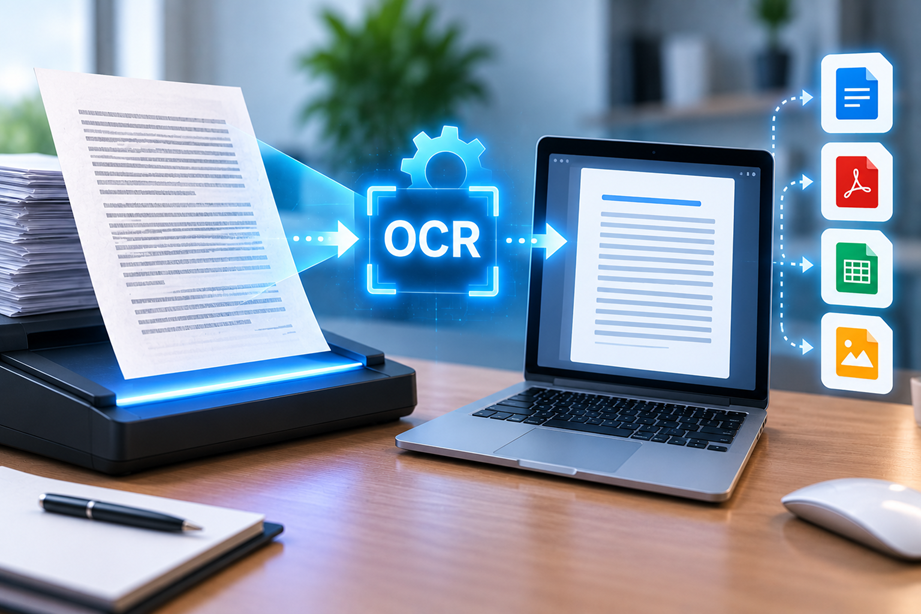
OCR stands for Optical Character Recognition. It is the technology used to identify text in a scanned document, photograph or image and turn that text into machine-readable content. That is why a scanned PDF can go from a page you can see but cannot search into a document where you can find words, copy text or sometimes edit the recognized content.
The important point is that OCR is not simply “making a PDF editable.” It is a recognition process. The software has to look at the image, identify likely text regions and characters, and then construct a text layer that applications can use. Modern OCR can also use layout analysis and machine-learning techniques, but the result still depends on the quality and structure of the original page.
Why a scanned PDF behaves differently
A digitally created PDF usually contains actual text objects. A scan can instead contain one large image for each page. You can see the words, but the computer may not know that those marks are letters and numbers.
That difference explains a common frustration: pressing Ctrl+F or using a search box may find nothing in a scanned document even though the page looks full of text. OCR bridges that gap by creating machine-readable text associated with the page image.
How OCR works step by step
A practical OCR workflow normally has several stages.
- Image analysis: the software inspects the scanned page and distinguishes likely text from background elements.
- Pre-processing: the image may be cleaned, straightened, sharpened or otherwise prepared for recognition.
- Text recognition: the OCR engine identifies characters and words based on the visual information it detects.
- Layout recognition: more capable systems identify columns, headings, tables and other page structures.
- Post-processing: the recognized text is assembled into a searchable or editable output.
Adobe's current OCR documentation describes this as a sequence involving image analysis, image preparation, text recognition and layout handling. citeturn343087search11turn343087search6
OCR versus ordinary PDF text
It helps to think of the two as different layers. A normal text PDF already contains characters that software can interpret. An OCR-processed scan keeps the visual page while adding a recognized text layer.
That means OCR can make a scan searchable without necessarily making every part of the document behave exactly like a document created in Word. Tables, unusual fonts, handwriting, damaged pages and complicated layouts can still be difficult to recognize.
What OCR can help you do
- Search scanned reports and contracts.
- Copy text from scanned pages.
- Extract information from receipts and invoices.
- Create more usable archives from paper records.
- Feed recognized text into other document workflows.
- Prepare a scan for further editing or conversion.
OCR is particularly useful when the alternative is manually typing information from a page. Even when the recognition is not perfect, it can reduce a large amount of repetitive work.
Why OCR sometimes gets words wrong
OCR engines work from visual evidence, so the original image matters. A blurry scan, unusual typeface, skewed page or low contrast can make recognition harder. Numbers and similar-looking characters can also cause mistakes.
Common examples include a zero being mistaken for the letter O, a one being mistaken for a lowercase l, or punctuation disappearing from a crowded line. Tables can be especially challenging because the software has to understand both the words and their positions.
Scanned PDFs, photos and screenshots
OCR is useful beyond traditional scanner output. A phone photograph of a receipt or a screenshot containing text can also be processed when the image is clear enough.
However, a photo introduces more variables: perspective, lighting, shadows and background clutter. Straightening and cleaning the image before recognition can improve the result.
OCR for invoices, receipts and forms
Business records are a common OCR use case because staff often need to retrieve details from documents that started as paper. A searchable archive can make later retrieval much faster than manually opening files one by one.
Structured documents such as invoices can sometimes be processed further so that particular fields are extracted. More advanced document-processing systems can combine OCR with classification and data extraction, but those workflows are more specialized than simply making a PDF searchable.
Searchable is not always the same as editable
This distinction is important. OCR can produce a searchable text layer while leaving the page appearance intact. Some applications can also use the recognized text to support editing, but editing a complex scanned page is a more demanding task.
When you need to change several paragraphs, tables or images, choose a workflow that explicitly supports editing rather than assuming OCR alone will recreate the original document perfectly.
OCR languages and document structure
Language support matters when a document contains more than one language, accented characters or scripts that are less common in the training data of a particular engine. Check the provider's current language list when multilingual documents are important.
Document structure matters too. A clean single-column page is usually easier to recognize than a magazine-style layout, a complex form or a page with stamps and handwritten notes.
How to check OCR accuracy
- Start with a representative page rather than a perfect sample.
- Search for names, numbers and dates.
- Check tables and columns separately.
- Compare the recognized text with the original image.
- Repeat the test on the lowest-quality documents you normally receive.
For contracts, financial records and other important documents, treat OCR output as something to verify rather than an unquestioned transcription.
Privacy when using OCR tools
OCR can involve sensitive information such as contracts, customer records, identification documents and invoices. Before uploading a file to an online service, review how the provider handles documents and what controls apply to stored files.
A desktop OCR workflow may suit some confidential work, but the word “desktop” alone is not a security guarantee. The right choice depends on the actual data, organization policies and provider documentation.
Do you need a dedicated OCR tool?
Not always. If OCR is an occasional task, an existing PDF editor may already provide it. If your main job is simply converting a few documents, a focused Tervilo tool may also be enough for the surrounding file workflow.
When OCR becomes routine across a large document archive or a structured business process, specialized document-processing software can make more sense.
Common OCR mistakes to avoid
- Assuming every recognized word is correct.
- Skipping the accuracy check on numbers and names.
- Expecting handwriting recognition to work like clean printed text.
- Ignoring the privacy implications of uploading sensitive scans.
- Choosing software before testing a realistic document.
When OCR is worth using
OCR earns its keep when the information inside a scan needs to become usable. If the document only needs to be viewed or stored as an image, recognition may add little value. If you need search, extraction, copy-and-paste or further editing, OCR can be the step that turns an archive into a working document collection.
Connect OCR to the right next step
Once you understand what OCR does, the next choice depends on your workflow. Users who need repeated editing, conversion or document work may want a full PDF editor. Users who only need an individual conversion can often use a focused tool instead.
Final takeaway
OCR converts visible text in scans and images into information that software can search and work with. It is extremely useful, but it is not magic: scan quality, layout, language and document complexity all affect recognition accuracy. The best workflow is to use OCR where it solves a real problem and verify the important output before relying on it.
FAQ
Does OCR make a scanned PDF editable?
It can make the text available to editing workflows, but the quality of editing depends on the software and the original document. OCR primarily creates machine-readable text.
Can OCR read handwriting?
Some systems support handwriting recognition, but handwriting is generally more difficult than clean printed text. Results depend heavily on writing style and image quality.
Is OCR the same as converting PDF to Word?
No. OCR is the recognition step. A PDF-to-Word workflow may use OCR when the source is scanned, but conversion also has to create the Word document and preserve its structure.
Should I trust OCR for financial or legal documents?
Important documents should be checked against the original after OCR. Recognition errors can affect names, dates, numbers and other details.
OCR and accessibility
Recognized text can make scanned material easier to search and work with, and it can be an important step when documents need to be processed by accessibility tools. But recognition alone does not guarantee a well-structured accessible document. Reading order, headings, tables and alternative text can still need attention.
OCR in a larger workflow
OCR is often one step in a longer process. A scanned invoice might be recognized, checked, converted into a structured record and then archived. A scanned contract might be recognized so staff can search it, while the original image remains the visual record. Thinking about the final workflow helps you choose the right OCR capability instead of buying a tool simply because it has an OCR button.
Sources checked
OCR capabilities and methods can evolve. The following authoritative material was checked during preparation; verify the current capabilities of any product you use.