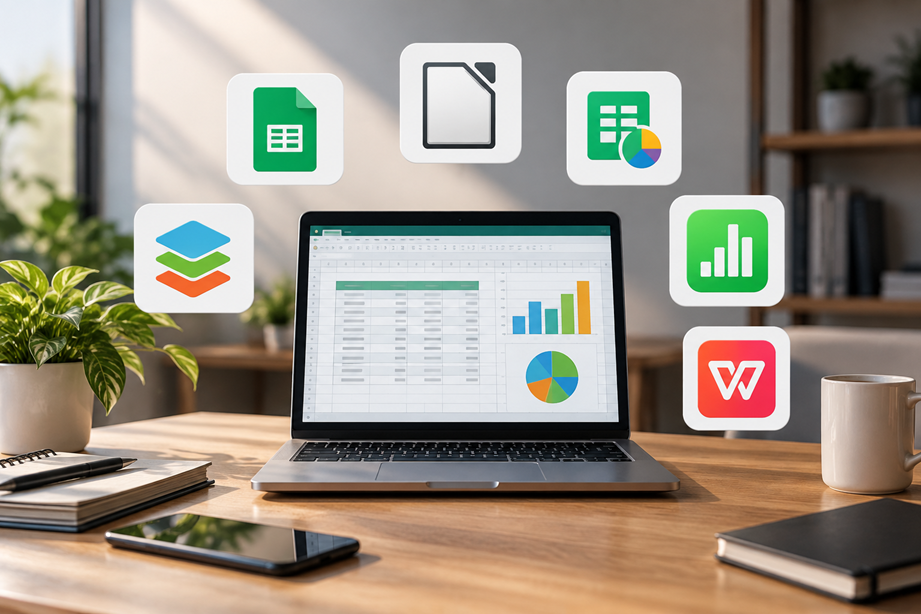
If you are searching for an Excel alternative, the reason usually matters more than the software itself. You may be tired of paying for Microsoft 365, need a spreadsheet that several people can edit at the same time, or simply want a program that works well without an internet connection.
There is no single replacement that makes sense for everyone. We looked at six widely used options and compared them on the things that tend to matter after the initial download: working with Excel files, collaboration, offline use, everyday spreadsheet features, platform support, and cost.
Our picks are deliberately use-case based. Google Sheets is the strongest choice for shared online work, LibreOffice Calc is the standout free desktop option, and Zoho Sheet is worth a close look for small teams. ONLYOFFICE is especially relevant when Office file formats are important. Apple Numbers makes the most sense inside the Apple ecosystem, while WPS Spreadsheet is a practical option for people who prefer a familiar Office-style interface.
Quick comparison
| Tool | Where it stands out | Excel files | Collaboration | Offline work | Cost |
|---|---|---|---|---|---|
| Google Sheets | Shared online spreadsheets | Strong | Excellent | Available | Free for personal use; paid Workspace plans |
| LibreOffice Calc | Free desktop work | Strong | Not its main strength | Excellent | Free and open source |
| Zoho Sheet | Small teams and business use | Strong | Excellent | Available | Free options; paid business plans |
| ONLYOFFICE | Office-style workflows | Strong | Strong | Excellent | Free desktop options; paid cloud/business options |
| Apple Numbers | Mac, iPhone and iPad users | Good | Excellent | Excellent | Included on Apple platforms |
| WPS Spreadsheet | Familiar Office-style experience | Strong | Good | Excellent | Free tier; paid features |
Compatibility is not a promise of perfect file conversion. A simple XLSX workbook usually travels more easily than a workbook that depends on macros, add-ins, or application-specific features.
1. Google Sheets: the easiest switch for shared work
Google Sheets is the option I would put first for someone who spends more time sharing spreadsheets than working on them alone.
The appeal is not that Sheets copies every Excel feature. It is that the basic workflow is uncomplicated: put the file in Drive, give people access, and work in the same document. Comments, permissions and version history are built into the workflow, so a team does not have to build its own system around the spreadsheet.
It also handles common Excel workflows reasonably well. Google documents that Excel files can be imported into Sheets, edited in Drive, converted to Sheets format, and exported again as Excel files.
Where it falls short: Excel still has the edge for some advanced desktop workflows, particularly where a business depends on VBA, specialist add-ins, or features that do not translate cleanly to a browser-based spreadsheet.
Best choice when: several people need to work on the same spreadsheet and cloud access matters more than having every Excel-specific feature.
2. LibreOffice Calc: the strongest free desktop choice
LibreOffice Calc is a better answer if your first requirement is simply, “I want a capable spreadsheet program on my computer and I do not want another subscription.”
Calc is part of the free, open-source LibreOffice suite. It is a traditional desktop application, so your files can stay on your computer and your normal spreadsheet work does not depend on a browser or cloud account.
It can open and save Microsoft Excel formats and includes the calculations, charts, filtering and data-analysis features most people expect from a full spreadsheet application.
Where it falls short: collaboration is not its main advantage. If five people need to edit a workbook together from different locations, a cloud-first tool will usually be less work.
Best choice when: you want a serious desktop spreadsheet without paying for Microsoft Excel.
3. Zoho Sheet: a practical option for small teams
Zoho Sheet sits somewhere between a personal spreadsheet and a business workspace. That makes it interesting for small teams that need sharing, comments, permissions and a browser-based workflow without building everything around Google.
Zoho specifically supports working with Excel files, including XLS, XLSX and XLSM, and provides collaboration and version-history features around shared spreadsheets.
For a team, the useful question is not just whether a formula works. It is whether people can find the current version, understand who changed something, and work together without creating a chain of emailed attachments. Zoho's collaboration features make it a credible option on that front.
Where it falls short: it has a smaller general-purpose ecosystem than Microsoft 365 or Google Workspace, so the surrounding services your team already uses may influence the decision.
Best choice when: a small business wants an online spreadsheet with collaboration and business-oriented controls.
4. ONLYOFFICE: worth considering when Office files matter
ONLYOFFICE is particularly relevant to people who regularly exchange Office documents with other people or organizations.
Its spreadsheet editor supports common formats including XLS, XLSX, XLSB and XLSM, as well as OpenDocument and CSV formats. The desktop editors can also work without a constant internet connection, which makes ONLYOFFICE a more interesting option than a purely browser-based spreadsheet for some users.
The practical advantage is familiarity. If your day-to-day work involves receiving an XLSX file, making changes, and sending it back, a tool designed around Office formats can reduce the number of compatibility surprises.
Where it falls short: it is not as universally familiar as Excel or Google Sheets, and the best setup depends on whether you want desktop software, online collaboration or a self-hosted deployment.
Best choice when: Office-format compatibility is one of the first things you check before choosing a spreadsheet application.
5. Apple Numbers: a good fit if you already use Apple devices
Apple Numbers makes the most sense when the rest of your working life is already inside Apple's ecosystem.
Numbers is designed around the Mac, iPhone and iPad experience, but it can also be used through iCloud in a browser. Apple supports importing and exporting Microsoft Excel spreadsheets, and the current product includes collaboration, charts, formulas and other spreadsheet features.
It is also a useful reminder that “Excel alternative” does not have to mean “Excel clone.” Numbers puts more emphasis on presentation and flexible layouts than Excel's traditional grid-first approach.
Where it falls short: if your job depends on exact Excel feature compatibility, test an important workbook before switching. Apple's own compatibility documentation lists Microsoft Office features that may be changed or handled differently during conversion.
Best choice when: you primarily use Apple hardware and want a spreadsheet that fits naturally into that environment.
6. WPS Spreadsheet: familiar if you prefer an Office-style interface
WPS Spreadsheet is aimed at users who want a conventional Office-style productivity suite without moving completely into Microsoft's ecosystem.
For someone coming from Excel, the attraction is straightforward: the basic spreadsheet workflow feels familiar, and WPS supports common Microsoft Office formats. It also has desktop and mobile applications, so it can suit people who move between devices.
Where it falls short: some of the broader WPS ecosystem features are tied to paid plans. If your priority is open-source software, LibreOffice is the cleaner choice; if your priority is collaborative browser editing, Google Sheets or Zoho Sheet may be a better starting point.
Best choice when: you want a familiar spreadsheet workflow and broad Office-file support across devices.
What happens to your Excel files when you switch?
This is the question worth answering before installing anything.
All six tools can work with common Excel files in some form, but “opens XLSX” should not be interpreted as “every Excel feature will behave exactly the same.” Simple budgets, lists, schedules and ordinary formulas are generally less troublesome than workbooks built around macros, unusual formatting, specialist add-ins or application-specific functions.
Google supports importing and exporting Excel files. LibreOffice Calc can open and save Excel formats. Zoho Sheet supports Excel formats including XLS, XLSX and XLSM. ONLYOFFICE documents support for XLS, XLSX, XLSB and XLSM. Apple supports Excel import and export but publishes a detailed compatibility table because some Office features can change during conversion.
Our practical advice: do not migrate the original business workbook first. Make a copy, open that copy in the alternative, check formulas and formatting, and test the parts of the workbook that your team actually depends on.
How much do these Excel alternatives cost?
Price is one reason people search for an Excel alternative, but it should not be the only deciding factor.
- Google Sheets: available free for personal use; business features are available through Google Workspace plans.
- LibreOffice Calc: free and open source.
- Zoho Sheet: has free options, with broader business capabilities available through paid plans.
- ONLYOFFICE: free desktop editors are available, alongside free and paid cloud/business offerings.
- Apple Numbers: available across Apple's supported devices and through iCloud.
- WPS Spreadsheet: offers a free tier with additional paid features.
If cost is your only concern, LibreOffice is the simplest answer. If your time is more valuable than the software licence, collaboration and compatibility may matter more than saving a few dollars a month.
Which Excel alternative is best for your situation?
| If you need... | Start with... | Why |
|---|---|---|
| Shared spreadsheets for a team | Google Sheets | Simple browser collaboration and sharing |
| A free desktop spreadsheet | LibreOffice Calc | Powerful, offline and open source |
| A business-oriented online spreadsheet | Zoho Sheet | Collaboration and team controls |
| Frequent Office-file exchange | ONLYOFFICE | Broad support for Office spreadsheet formats |
| An Apple-first workflow | Numbers | Strong integration across Apple devices |
| A familiar Office-style interface | WPS Spreadsheet | Familiar workflow and broad file support |
When Excel is still the better choice
Replacing Excel is not automatically an upgrade.
If you depend on complex VBA automation, specialist Excel add-ins, highly customized corporate workbooks, or features that have no clean equivalent elsewhere, staying with Excel can be the sensible decision.
Microsoft also offers Excel on the web, so switching to another browser spreadsheet does not automatically solve every problem. The real reason to move should be something concrete: cost, collaboration, platform preference, offline use, or a workflow that another application handles better.
Our picks, without the marketing language
For most people working with other people, start with Google Sheets. It removes a lot of friction from sharing and co-editing.
For someone who simply wants Excel-like spreadsheet work on a personal computer without paying for it, start with LibreOffice Calc.
For a small business, compare Google Sheets and Zoho Sheet before choosing. The better fit will depend on the other tools your team already uses.
If exchanging Office files is central to your work, test ONLYOFFICE with a real copy of your workbook. Compatibility should be judged on your files, not on a feature checklist.
For Apple users, try Numbers with the spreadsheets you actually use. It can be an excellent fit, but exact Excel compatibility should be verified before a business migration.
And if none of these solves the problem you are trying to fix, there is nothing wrong with staying with Excel. The goal is not to replace Microsoft software for the sake of it. The goal is to find a spreadsheet tool that makes your particular work easier.
Frequently asked questions
What is the best free alternative to Excel?
For a free desktop spreadsheet, LibreOffice Calc is the clearest choice. For free online collaboration, Google Sheets is the stronger starting point.
Can I open an Excel file without Microsoft Excel?
Yes. Google Sheets, LibreOffice Calc, Zoho Sheet, ONLYOFFICE, Apple Numbers and WPS Spreadsheet can work with common Excel file formats. The result can vary with the complexity of the workbook.
Will an Excel file look exactly the same in another spreadsheet program?
Not necessarily. Basic workbooks usually transfer more easily. Macros, add-ins, specialized formatting and application-specific features are more likely to need checking.
Is Google Sheets better than Excel?
It depends on the job. Sheets is particularly strong for browser-based collaboration, while Excel remains a better fit for many advanced desktop and Microsoft-specific workflows.
What is the best Excel alternative for a small business?
Google Sheets and Zoho Sheet are the first two I would compare for a small team. If Office-file compatibility is especially important, add ONLYOFFICE to the test.
Is LibreOffice Calc compatible with Excel?
Calc can open and save Microsoft Excel formats. For an important workbook, test a copy before making a permanent switch because compatibility depends on the features used in that workbook.
Is Apple Numbers a good replacement for Excel?
It can be, particularly for Apple users. Numbers supports Excel import and export, but Apple documents compatibility differences for some Microsoft Office features, so business users should test important files first.
Related Tervilo resources
This article should connect to Tervilo's existing practical content only where the link genuinely helps the reader. Use the admin panel's Related Tools and Related Guides selectors for the closest spreadsheet, finance, productivity or data-related resources already published on Tervilo. Do not add unrelated calculator links just to increase internal-link count.
For the broader site, readers can also continue to Tervilo Guides or more Tervilo Articles when those destinations are relevant to the question they are trying to solve.
Sources and verification
- Google Docs Editors Help — Work with Microsoft Office files
- LibreOffice Help — Saving spreadsheets and file formats
- Zoho Sheet — Work with Excel files
- ONLYOFFICE — Supported spreadsheet formats
- Apple — Numbers compatibility with Microsoft Office
- Apple — Numbers
- WPS Office — official product information
Last reviewed September 2026. Product features, pricing and compatibility can change. Check the provider's current documentation before moving an important workflow or purchasing a plan.