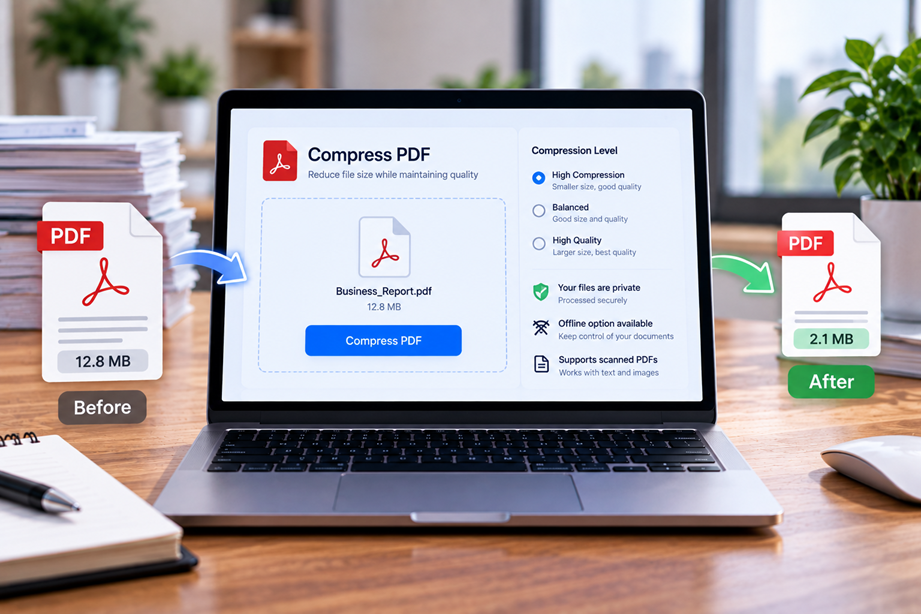
PDF compression is a trade-off: the smaller the file becomes, the more important it is to protect readability, image quality and document usability. The right compressor depends on whether you are reducing a large scan, preparing email attachments, optimizing a web upload or trying to archive a document efficiently.
What good PDF compression should do
A useful compressor should reduce unnecessary file size while keeping text readable and images acceptable for their purpose. Look for control over compression strength, predictable output, batch processing when needed and a clear approach to sensitive files.
Quick comparison
| Tool | Best for | Key strengths | Watch for |
|---|---|---|---|
| Adobe Acrobat | Broad PDF optimization | Compression and PDF optimization controls | Strong compression can affect images |
| Smallpdf | Quick browser compression | Simple upload-and-compress workflow | Review online-processing requirements |
| Nitro PDF Pro | Desktop optimization | Local PDF workflow and tools | Check current optimization options |
| Tervilo PDF Compression | One-off compression | Focused task workflow | Use an editor when broader changes are needed |
Adobe Acrobat
Adobe Acrobat currently includes PDF compression alongside editing, conversion, signing, OCR and document workflow features. Adobe describes compression as a way to make PDFs easier to share while maintaining usable quality.
It is a strong choice if compression is part of a wider business PDF workflow.
Smallpdf
Smallpdf offers browser-based compression with multiple compression levels and also provides desktop compression tools. Its current pages describe Basic, Moderate and Strong compression choices and offline desktop processing.
Smallpdf is attractive for quick, accessible compression across devices.
Nitro PDF Pro
Nitro's current product information includes PDF compression among its recent improvements, alongside editing, OCR and Office conversion.
Nitro may appeal to users who want compression inside a desktop PDF environment rather than a standalone browser utility.
Compression depends on the document
A text-only PDF may compress differently from a scan full of photographs. Reducing image resolution can produce dramatic savings, while text and vector elements may respond differently. Never assume the same compression setting is ideal for every document.
Quality matters more than the headline percentage
A dramatic file-size reduction is not automatically better. A form with tiny text can become difficult to read after aggressive optimization, and an image-heavy report can become visibly degraded.
Use the right compression level
- Start with moderate compression.
- Open the output and inspect small text.
- Check photographs and diagrams.
- Confirm forms and hyperlinks still work.
- Use stronger compression only when the quality trade-off is acceptable.
Privacy: browser vs desktop
If a document is confidential, check whether a service uploads the file and how it handles retention or deletion. Smallpdf currently documents both online and offline workflows, while desktop processing can be useful when local handling is preferred.
Where Tervilo fits
Tervilo's PDF toolkit is designed to handle focused document tasks. Use the relevant Tervilo PDF utility when you need a quick operation without adopting a full document-management application.
Best fit by use case
- All-in-one business PDF workflow: Adobe Acrobat.
- Fast web-based compression: Smallpdf.
- Desktop PDF workflow: Nitro PDF Pro.
Final recommendation
Choose based on the type of PDF and the quality you need to preserve. For sensitive business files, include privacy and local-processing requirements in the decision. For everyday sharing, a convenient web compressor may be all you need.
FAQ
Does compression always reduce quality?
Not necessarily. Some optimization removes unnecessary data while keeping visible quality high, but stronger compression can reduce image or scan quality.
Should I compare compressors by percentage reduction alone?
No. Compare final file size and whether the document remains usable.
What should I check after compression?
Check small text, images, forms, links and page appearance before sending or archiving the file.
Compression for email and web uploads
Email systems, client portals and website upload forms can impose file-size limits. In those situations, compare the compressed file with the stated limit rather than aiming for the smallest possible file. A slightly larger PDF that remains crisp is often the better result.
Scanned documents need special care
Scanned PDFs can respond strongly to image optimization. After compression, inspect small text, signatures, stamps and diagrams at normal viewing size. If a scan becomes unreadable, the file is too aggressively compressed for that use.
Compression settings should match the destination
A document prepared for email may need a different setting from a PDF prepared for printing or archival reference. Decide the destination first, then choose the lowest file size that still preserves the quality the recipient needs.
Keep an original copy
Compression is often difficult to reverse cleanly. Keep the original PDF and treat the compressed copy as a distribution version, especially when the document may need to be reused later at higher quality.
Quality should be measured against the destination
A PDF that only needs to pass a website upload has different requirements from a document intended for high-quality printing. Decide the destination first and choose the smallest reduction that meets it.
Compare versions at important points
Create a compressed copy and inspect representative pages. If the document contains a signature, chart, small type or fine scan detail, make those areas part of the test rather than judging only the first page.
When a dedicated compressor is enough
If compression is the only task, a focused tool is usually simpler than a full PDF suite. Move to a larger editor when you also need editing, OCR, conversion or signing.
Compression quality should match the purpose
A web upload, email attachment and print-ready document can need different output quality. Start from the destination instead of choosing the strongest compression setting by default.
Look for hidden problems
After compression, inspect small text, signatures, charts, fine lines and scanned details. Also test links, bookmarks or form fields when the document uses them.
Make the smaller copy clearly a derivative
Keep the original source and use a clear filename for the compressed copy. This is particularly useful when the business needs to prove which document was originally issued.
Keep compression reversible
The safest habit is to preserve the original and create smaller copies for specific destinations. This lets you make a different output later if a client needs higher quality or a printer has stricter requirements.
For recurring work, document which compression setting is normally used for email, web uploads and print so the team does not have to guess each time.
Choose consistency over maximum reduction
If your team compresses PDFs regularly, standardize a simple rule for common destinations. For example, use one approach for email and web uploads and a less aggressive approach for documents that may be printed. Consistency reduces guesswork and protects document quality.
Sources checked
Product features and program information can change. These official pages were checked during preparation; recheck the current plan, feature and partner terms before activation.