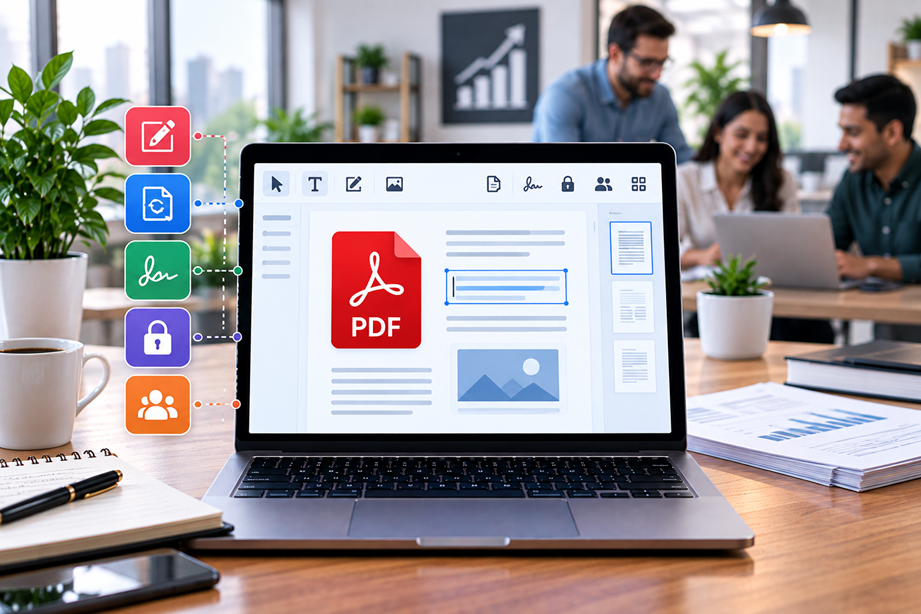
Small businesses rarely need every PDF feature available. The better question is whether a PDF editor handles the documents your team actually works with: contracts, forms, invoices, proposals, reports and scanned paperwork. A useful business choice should make routine editing and conversion easier without adding unnecessary complexity.
What a small business should look for
Start with the work rather than the brand. Most teams need some combination of editing text and images, creating PDFs, converting Office files, organizing pages, filling forms, signing documents, protecting sensitive files and collaborating with colleagues. Administration, platform support and pricing can matter just as much as feature count.
Quick comparison
| PDF editor | Best for | Key strengths | Watch for |
|---|---|---|---|
| Adobe Acrobat | Broad all-in-one PDF work | Editing, conversion, OCR, signing and organization | Compare the exact plan you need |
| Foxit PDF Editor | Feature-rich desktop workflows | Editing, conversion, OCR, security and collaboration | Advanced features vary by plan |
| Nitro PDF Pro | Desktop and Office-heavy work | Editing, conversion, forms, signing and document controls | Review current plan details |
| Smallpdf | Convenient web-first tasks | Conversion, compression, organization and signing | Check online-processing and plan limits |
Adobe Acrobat: the broadest all-in-one option
Adobe Acrobat is designed as a broad document workflow product. Adobe's current business pages describe editing, converting, signing, sharing, administration, integrations and security features, with small-business plans intended for organizations with up to 10 licenses. Adobe also provides web-based PDF tools for common conversion tasks.
Acrobat is a strong fit when a business wants one established platform for editing, conversion, signing and document workflows. Its breadth can be useful for teams that would otherwise combine several specialist products.
Foxit PDF Editor: a feature-rich alternative
Foxit PDF Editor currently lists PDF editing, conversion to Word and Excel, organization, protection, OCR, collaboration and eSign integration among its capabilities. It also highlights accessibility features.
That makes Foxit worth comparing for teams that want a traditional PDF editor with broad desktop capabilities and strong document-management features.
Nitro PDF Pro: strong document and Office integration
Nitro's current documentation describes creating, editing, reviewing, converting PDFs to Microsoft Office formats, combining documents, electronic signatures, OCR and security features. Its current pricing page also lists Windows, Mac and iOS support across the product line.
Nitro can make particular sense for organizations that spend much of their day in Microsoft-oriented document workflows and want a full desktop PDF environment.
Smallpdf: strong web-first convenience
Smallpdf offers a large collection of browser and desktop PDF tools, including editing-related workflows, conversion, compression, merging, splitting and signing. Its desktop product also supports offline work and batch operations.
Smallpdf is attractive when convenience and a broad web workflow matter more than a traditional enterprise-style document platform.
Which editor is best for editing text and images?
Look for reliable text and image editing first. A product can advertise “editing” while still being awkward with paragraph reflow, complex layouts or scanned pages. Ask whether your documents are mostly simple office PDFs or complex designed documents.
Which is best for PDF conversion?
Conversion quality depends heavily on the source. A digital PDF with selectable text is a different problem from a scanned document that needs OCR. Adobe, Foxit and Nitro all document Office conversion and OCR capabilities, while Smallpdf provides web-based conversion workflows.
Which is best for signing documents?
If your business sends contracts or approvals regularly, signing is more important than a long list of minor PDF features. Compare the signing workflow, recipient experience, tracking, templates and any limits on the plans you are considering.
Security matters more for business PDFs
Business documents can contain personal information, contracts, financial records and confidential material. Check encryption, permissions, redaction, storage, account controls and the vendor's current security documentation. Do not assume that every PDF tool handles sensitive files in exactly the same way.
Desktop vs browser
Browser tools are convenient for occasional work and mixed-device teams. Desktop applications can be better when users process many documents, work offline, need advanced editing or have organizational requirements around local file handling.
How to choose for a small team
- List the three or four PDF tasks your team performs every week.
- Decide whether browser, desktop or both are required.
- Check conversion and OCR requirements.
- Check signing and collaboration needs.
- Review security and administration requirements.
- Compare the total cost for the number of people who actually need premium features.
Use Tervilo for quick PDF tasks
Not every job needs a paid PDF suite. Tervilo's PDF tools can handle focused tasks such as converting a PDF to Word or Excel, letting you reserve a paid editor for workflows that genuinely need advanced capabilities.
Our practical shortlist
- Adobe Acrobat: strong all-in-one business workflow.
- Foxit PDF Editor: broad editing, conversion and document features.
- Nitro PDF Pro: strong desktop and Microsoft-oriented workflow.
- Smallpdf: convenient web-first and cross-platform toolkit.
Final recommendation
Choose the editor that matches your document workflow, not the longest feature list. A small business that mostly edits, converts and signs documents will often benefit from an all-in-one platform. A team focused on occasional browser-based tasks may prefer a lighter web workflow. Recheck current plans and feature limits before purchasing because vendors change packaging over time.
FAQ
Do I need a full PDF editor for simple PDF tasks?
No. Simple conversions or compression jobs may be handled by a focused online tool. A full editor becomes more valuable when your workflow regularly includes editing, forms, signing, OCR, protection or document organization.
Is Adobe Acrobat only for large companies?
No. Adobe currently offers business plans aimed at small organizations as well as larger teams.
Which is better: desktop or online PDF software?
It depends on the workflow, document sensitivity and volume. Browser tools are convenient; desktop software often provides deeper editing and offline capabilities.
When a free tool is enough
If your team only occasionally combines pages, converts a simple document or makes a small text correction, a focused free tool may be enough. Pay for a larger PDF suite when the repeated workflow includes several advanced features.
Check the real total cost
Compare the number of licenses, features included at each tier and any workflow tools your team would otherwise buy separately. A product with a higher subscription price can still be better value when it replaces several separate utilities.
How to choose for your actual team
A small business should build its shortlist from the documents it handles most often. If contracts and proposals dominate, editing and signing may matter more than advanced collaboration. If staff frequently convert files, Office compatibility becomes more important. If documents contain confidential information, local handling and permission controls deserve extra weight.
Try the same small set of real documents in each finalist rather than relying on vendor demos. Use one ordinary file, one table-heavy or image-heavy file, and one scanned file when relevant. This exposes limitations that a feature checklist can hide.
Signs you are overbuying
You may be paying for too much software when only one person needs advanced editing and everyone else mainly views or comments on PDFs. In that situation, compare the cost of a mixed setup with a single suite. The better choice is the one that keeps the workflow simple without leaving important tasks unsupported.
Choose by your most frequent PDF task
If most of your work is editing contracts and proposals, prioritize reliable text editing, page organization and forms. If you mainly convert files, give more weight to Office conversion and OCR. If documents move between several people, sharing, comments and version awareness matter more.
Think about sensitive documents
Small businesses often handle contracts, invoices, customer records and employee documents. Review the provider's current security, privacy, access and redaction capabilities. Do not upload confidential files to an online service simply because it is convenient.
Do a realistic trial
Use the same small set of files in each finalist: one normal PDF, one difficult layout and one scan if scans are part of your work. Time the workflow. A product that appears powerful but creates repeated cleanup can be less efficient than a simpler alternative.
Final buying checklist
Before choosing, confirm that the editor works with your normal file types and operating systems, supports the PDF tasks your staff repeat, and keeps the workflow understandable. Check whether files need to stay local, whether your team shares documents externally, and whether you need OCR, conversion, signatures or advanced security. Then compare the plan cost for the number of people who actually need those features.
Do not choose on brand recognition alone. A strong fit is the tool that handles your difficult document with the fewest manual corrections.
Do not optimize for features you never use
A small-business PDF editor should earn its place by removing friction from real document work. Make a shortlist from the tasks that occur every week, verify those tasks on representative files, and ignore features that do not affect your workflow. This keeps the purchasing decision practical and the final software easier for staff to adopt.
Sources checked
Product features and program information can change. These official pages were checked during preparation; recheck the current plan, feature and partner terms before activation.