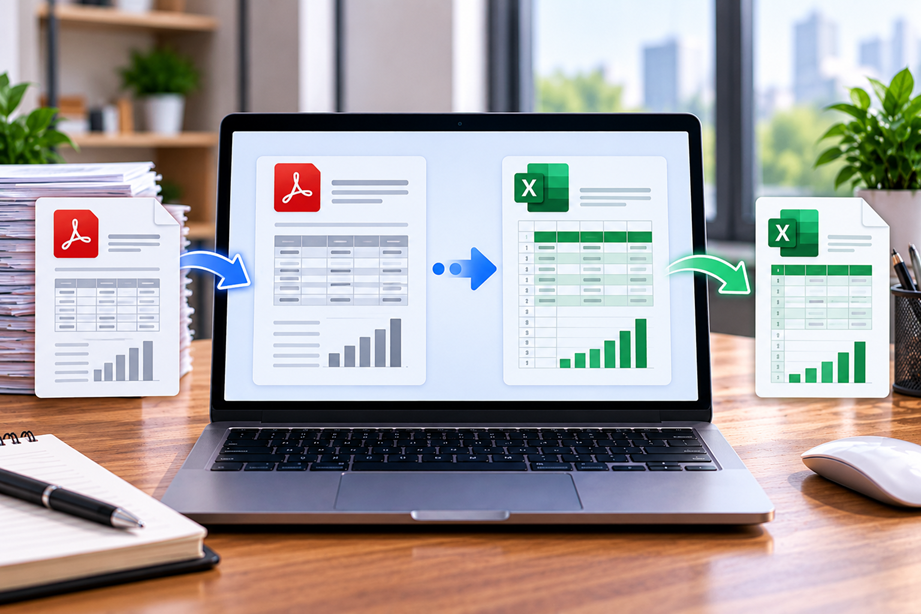
Turning a PDF into Excel is not just a format change. The real goal is usually to recover structured rows and columns that can be analyzed, filtered or edited. A converter can create an XLSX file that looks promising but still contain shifted columns, merged cells, missing values or OCR errors. The best choice is therefore the one that minimizes cleanup for your type of source PDF.
What to evaluate
Focus on table recognition, column alignment, multi-page tables, scanned PDFs, OCR, batch processing, export structure and how easy it is to verify the result. For business use, privacy and document-handling practices should be considered alongside convenience.
Quick comparison
| Converter | Best for | Key strengths | Watch for |
|---|---|---|---|
| Adobe Acrobat | Mixed table-heavy PDFs | PDF-to-Excel workflows with OCR | Complex tables still need validation |
| Foxit PDF Editor | Desktop conversion | Excel export and table-handling options | Review output structure carefully |
| Nitro PDF Pro | Desktop spreadsheet workflows | Excel conversion with output controls | Exact layout can change |
| Smallpdf | Occasional online conversion | Fast browser workflow | Check privacy and file limits |
Adobe Acrobat
Adobe's current Acrobat tools support PDF-to-Excel conversion and broader OCR and PDF-editing workflows. Adobe also provides browser-based PDF-to-Excel conversion.
Acrobat is a strong option when spreadsheet extraction is one part of a broader document workflow.
Foxit PDF Editor
Foxit currently lists PDF export to Excel, OCR, editing, organization, protection and collaboration among its PDF capabilities.
This broader feature set can be useful when users need to prepare the PDF before exporting it.
Nitro PDF Pro
Nitro documents PDF-to-Excel conversion, OCR, editing and other Office conversion workflows. Its current product line is designed for desktop document work across supported platforms.
Smallpdf
Smallpdf supports conversion between PDF and Office formats and offers both web and desktop workflows.
Why PDF-to-Excel is harder than PDF-to-Word
Word can accept text that is slightly out of position and still look reasonable. Excel depends on structure. A single misread column can change the meaning of the entire dataset. This is why spreadsheet conversion should always be followed by validation.
Digital tables vs scanned tables
Digitally generated PDFs often contain text and positioning information that can be extracted. Scanned tables require OCR and may need more cleanup, especially when cells are tightly packed or the scan is low quality.
Check numbers before calculations
If a converted worksheet will feed formulas, budgets, statements or reports, verify representative rows and totals before using it. A converter can produce an apparently clean sheet while changing a decimal, date, currency symbol or column assignment.
Use Tervilo's PDF-to-Excel tool
Tervilo's PDF to Excel Converter is designed as a starting point for selectable-text PDFs. It organizes extracted text into an XLSX workbook, but complex table reconstruction can require cleanup.
How to test a converter
- Choose a simple one-table PDF.
- Choose a multi-page report.
- Choose a PDF with merged cells if that is common in your work.
- Test a scanned document if OCR matters.
- Compare row counts and totals.
- Record how much manual cleanup remains.
Privacy considerations
Online converters can require uploading business documents to a service. Before using them for sensitive information, review the provider's current security and file-handling documentation. A local desktop workflow may be preferable for some confidential datasets.
Best fit by use case
- Broad PDF workflow: Adobe Acrobat.
- Editing plus export: Foxit PDF Editor.
- Office-focused desktop workflow: Nitro PDF Pro.
- Simple web/desktop conversion: Smallpdf.
Final recommendation
Choose the converter that reliably preserves the table structure you actually need. For clean digital PDFs, several established tools can be effective. For scans, complex tables and operational data, the quality of OCR and validation workflow matters more than the brand name.
FAQ
Can a converter guarantee perfect Excel output?
No. Complex tables, scans and unusual layouts can require cleanup.
Should I use a converted spreadsheet as-is?
Not for important decisions. Validate values, rows, columns and totals first.
Do all PDF-to-Excel tools work equally well on scans?
No. OCR quality and table recognition vary, so test the exact type of scanned document you handle.
Special cases: invoices and statements
Invoices and financial statements deserve extra checking because small extraction errors can affect totals. Compare dates, invoice numbers, currency values, negative amounts and subtotal rows against the source document.
When a spreadsheet is not the right output
If you only need to read, print or archive the source, conversion may create unnecessary cleanup. Use PDF directly when the fixed document is already the format your workflow needs. Convert to Excel when you genuinely need structured data for analysis or editing.
Do not compare only the exported file type
Every tool in this comparison can produce spreadsheet output, but the useful question is how much usable structure survives. Compare headers, rows, numeric cells and repeated table sections, not just whether the download ends in .xlsx.
How to test PDF-to-Excel conversion
Use the hardest table you normally receive rather than a perfect example. Check totals, row counts, merged cells, headers, decimal separators, dates and currency values.
Then ask what the spreadsheet is for. If you only need to copy a few values, a manual workflow may be faster. If you repeatedly convert the same type of report, a more structured extraction workflow can be worthwhile.
Protect downstream calculations
Do not build important formulas on an unverified conversion. Validate the source totals first, then check a sample of individual values before using the workbook for reporting or financial analysis.
Test the table that matters most
Choose a real table from the type of documents you process repeatedly. Check merged cells, totals, headers and multi-page behavior. This is more informative than testing a simple grid designed specifically for a software demonstration.
Separate extraction from analysis
A converted workbook is an extraction result, not automatically a verified dataset. First validate the values. Then use formulas, charts or reporting. Keeping those steps separate helps prevent a small extraction error from becoming a larger business error.
Use the right tool for recurring workloads
If hundreds of similar statements arrive each month, look beyond occasional conversion and consider a repeatable extraction process. For a single small table, the simplest available method may be the most efficient.
What matters most for financial data
If the converted spreadsheet will influence an invoice, budget, payment or report, accuracy matters more than convenience. Establish a short validation checklist and use it every time. Confirm totals and a sample of individual values before the workbook becomes part of another system.
That extra minute of review is usually cheaper than correcting a downstream calculation built on a bad extraction.
Validate before importing into another system
If the spreadsheet will feed accounting, reporting or another database, validate the converted data before importing it. A clean-looking workbook can still contain shifted columns or text values. Treat the conversion as an extraction step that needs verification.
Sources checked
Product features and program information can change. These official pages were checked during preparation; recheck the current plan, feature and partner terms before activation.