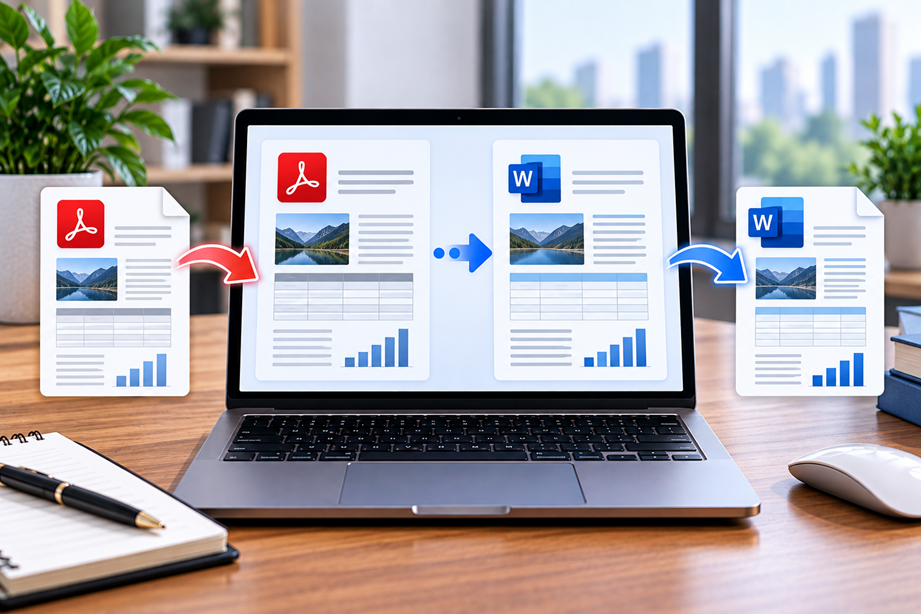
PDF-to-Word conversion sounds simple until the source contains columns, tables, images, unusual fonts or scanned pages. The best converter is not simply the one that creates a DOCX file. It is the one that leaves you with the least cleanup for the kind of PDF you actually receive.
What makes a good PDF-to-Word converter?
Look at text extraction, layout preservation, tables, images, scanned-document OCR, page structure and the amount of manual cleanup required afterward. Privacy and upload handling also matter when the files contain business or personal information.
Quick comparison
| Converter | Best for | Key strengths | Watch for |
|---|---|---|---|
| Adobe Acrobat | Broad PDF workflows | Word conversion, OCR and PDF editing | Complex layouts still need checking |
| Foxit PDF Editor | Desktop conversion | Word export, layout controls and OCR options | Check advanced conversion settings |
| Nitro PDF Pro | Office-oriented work | PDF-to-Word conversion and page controls | Exact formatting is not guaranteed |
| Smallpdf | Quick online conversion | Simple browser workflow | Review privacy and upload requirements |
Adobe Acrobat
Adobe currently supports PDF conversion to Microsoft Word through its Acrobat tools and documents broader PDF editing, OCR and document workflows. Its online tools also include PDF-to-Word conversion.
Acrobat is a strong choice when conversion is part of a larger PDF workflow and you also need editing, OCR, signing or document management.
Smallpdf
Smallpdf provides browser and desktop PDF-to-Office workflows and states that its software can convert PDF documents to Word and other formats. Its desktop product also supports offline processing and batch tools.
It is appealing when convenience and a simple web interface matter more than building a larger document-management workflow.
Nitro PDF Pro
Nitro's current documentation lists conversion of PDFs to Microsoft Office formats, OCR, editing, document combination and signing.
Nitro is worth considering for Office-heavy teams that prefer a full desktop PDF application.
Foxit PDF Editor
Foxit currently lists conversion to Word, Excel and PowerPoint, OCR for scanned documents, PDF editing, security and eSign integration.
Foxit can be a good fit when PDF conversion is only one part of a broader editing and document workflow.
Digital PDFs vs scanned PDFs
If text can be selected and copied in the PDF, extraction is usually a simpler problem. Scanned PDFs are essentially page images and require OCR before the content can become editable text. Even good OCR can misread tables, unusual fonts or low-quality scans, so the result should be checked.
Table-heavy PDFs need extra checking
A DOCX can preserve the words while still damaging the structure. For invoices, reports and financial tables, compare column alignment, decimal values, headings and totals after conversion instead of trusting visual similarity alone.
Layout fidelity is not binary
A converter can preserve the appearance of a simple report well but struggle with multi-column pages, embedded graphics or forms. Test the exact type of PDF you commonly receive before committing to a workflow.
Privacy and cloud conversion
Online conversion can be convenient, but sensitive documents deserve extra scrutiny. Check how the provider describes file handling, storage, deletion and account security. For confidential material, a local or offline workflow may be preferable where supported.
Free vs paid conversion
Occasional users may be satisfied with a free web converter. Teams that convert documents frequently may benefit from batch tools, OCR, higher usage limits and deeper editing capabilities. The right choice depends on frequency and cleanup time, not just the subscription price.
Use Tervilo's PDF-to-Word tool for simple text PDFs
Tervilo's PDF to Word Converter is designed for selectable-text PDFs and clearly communicates its layout limitations. It can be useful for a quick conversion when you understand the source file.
How to compare converters fairly
- Choose a normal text PDF.
- Choose a table-heavy PDF.
- Choose a scanned PDF if OCR matters.
- Compare headings, tables, images and page breaks.
- Check the DOCX for missing or misread content.
- Record how much cleanup was required.
Best fit by use case
- Broad business workflow: Adobe Acrobat.
- Simple browser-first conversions: Smallpdf.
- Office-heavy desktop workflow: Nitro PDF Pro.
- Broad editing plus conversion: Foxit PDF Editor.
Final recommendation
Choose a converter based on the PDFs you actually handle. For selectable text and straightforward reports, several modern tools can work well. For scans and complex tables, OCR quality and cleanup effort become the deciding factors. Always review converted business data before using it as the source of financial, legal or operational decisions.
FAQ
Can PDF-to-Word conversion preserve every layout perfectly?
No. PDF preserves fixed appearance while Word represents editable document structure, so complex layouts can change during conversion.
Do scanned PDFs need OCR?
Usually, yes. A scan is normally an image, so OCR is needed to turn it into searchable/editable text.
Should I trust converted tables automatically?
No. Check row/column alignment, numbers and totals before using converted tables operationally.
What to do when the source PDF is mostly an image
If the PDF came from a scanner, the converter may need OCR before editable text can be created. Compare the recognition of names, dates, table headings and small print. A visually impressive DOCX is not enough if a critical number has changed.
How much cleanup is acceptable?
For occasional personal use, a few corrections may be fine. For repeated business work, compare the time spent correcting output with the cost of a more capable converter. A tool that is slightly more expensive can be cheaper overall if it reduces manual cleanup.
How to test a PDF-to-Word converter
Use three representative files: a clean digital document, a document with tables or columns, and a scan if scanned material is part of your work. Compare headings, paragraphs, tables, images, hyperlinks and page breaks after conversion.
Also check what happens to fonts and text flow. A conversion that preserves the page appearance but creates an awkward document to edit may not actually save time.
Keep the source and output together
For important documents, retain the original PDF alongside the converted Word file. This makes it easier to compare later revisions and shows where the editable derivative came from.
Digital PDFs versus exported scans
A PDF created from Word or another digital application usually contains structured text. A scan may contain only page images. When choosing a converter, test both kinds because the second requires recognition before it can become editable Word content.
Check the parts people actually edit
For a contract, that may be names, dates, clauses and signature fields. For a report, it may be headings, tables and charts. The useful converter is the one that keeps those parts easy to work with after export.
When a PDF should stay a PDF
Sometimes conversion is the wrong goal. If the document is already final and visually correct, keeping it as a PDF may be safer than creating an editable derivative. Convert only when the next step genuinely requires Word.
What a good conversion looks like
The best output is not necessarily the one that looks most like the original page. It is the one that is easiest to edit while preserving the information that matters. For some users that means clean paragraphs and headings; for others it means accurate tables and images. Define the required outcome before deciding which converter is best.
Keep the PDF as the reference copy whenever the source is important.
Conversion quality should be judged after editing
Open the Word output and make a small real edit. Check whether the paragraph structure behaves naturally, whether tables remain usable and whether the document can be updated without fighting the imported formatting. This is a better test than simply checking that the exported file opens successfully.
Sources checked
Product features and program information can change. These official pages were checked during preparation; recheck the current plan, feature and partner terms before activation.